
Shopify App · Multiple Addresses · No.001
One purchase, up to 20 delivery addresses.
MultiGifts is a Shopify app that lets customers split the items in their cart across multiple delivery addresses and pay once. For each address, customers can choose the delivery date and time, noshi (Japanese gift wrapping) and a message card.
*Delivery is supported only within Japan. The app's admin and theme editor settings are shown in Japanese
01 · Why MultiGifts
When you want to send a gift to several people.
- Customer“I have to place a separate order for each address”
- Store“I receive a list of addresses, create a draft order for each one, and ask the customer to pay”
With gifts such as ochugen, oseibo and uchiiwai, one customer often sends gifts to many people. We built MultiGifts so that customers can set multiple delivery addresses in a single order, with a delivery date and noshi for each, and so that stores can ship those orders the same way as any other order.
02 · How it works
Three steps for your customers
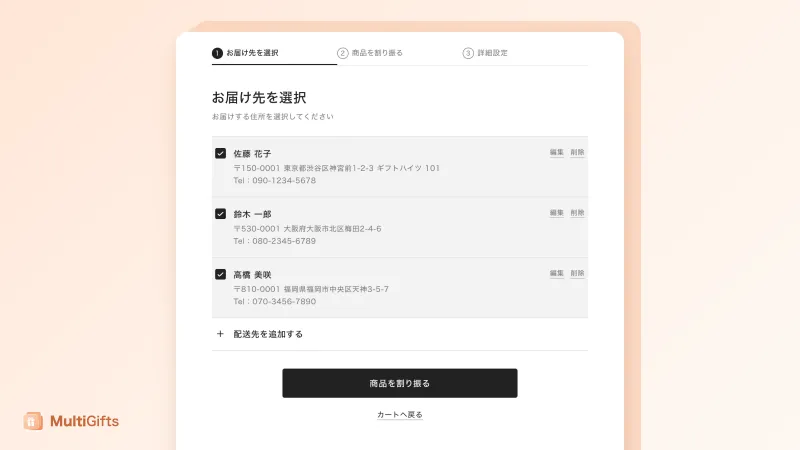
Customers start from the "Ship to multiple addresses" button on the cart page.
- STEP 1
Choose addresses
Customers pick from their address book or add a new one. Customers who aren't logged in can also enter addresses and place an order.
- STEP 2
Split the items
Customers assign items and quantities to each address.
- STEP 3
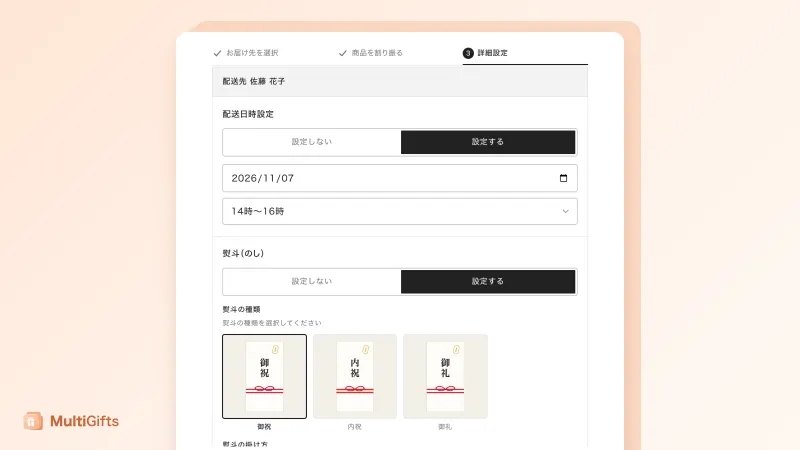
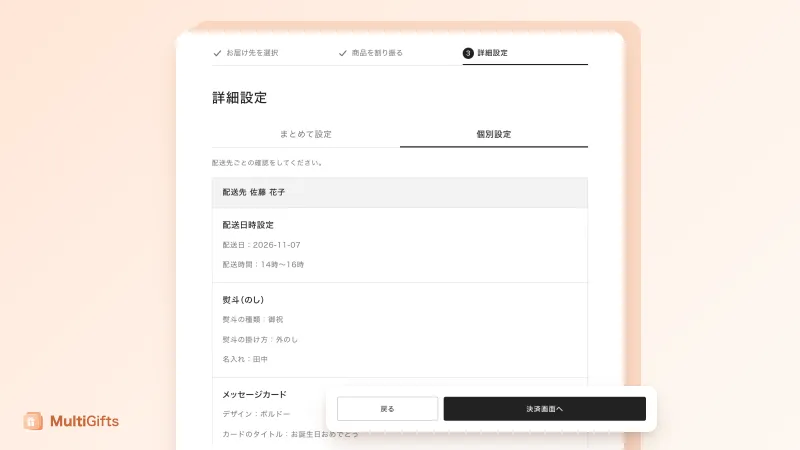
Set the delivery date, time and gift options
Customers set the delivery date and time, noshi, message card and gift bag for each address or for everyone at once, then go to checkout.
Customers pay only once. After payment, an order for each address (a child order) is created automatically, so you can ship from those orders with your usual fulfillment work.
03 · Features
Features
Shipping
Calculated automatically for each address
Shipping is calculated for each address from your store's shipping rates. You don't need to set up shipping again in the app.
Total shown before checkout
The total shipping appears on the allocation screen, and it is added to the order as a single line, 配送料(お届け先N件) (Shipping, N addresses).
Free shipping conditions are checked per address
A condition such as "free shipping on orders of ¥5,000 or more" is checked for each address, using the items going to that address.
Delivery date, time and gift settings
Accepting delivery dates
Set the preparation time, order cutoff time, holidays, Japanese national holidays and delivery time slots.
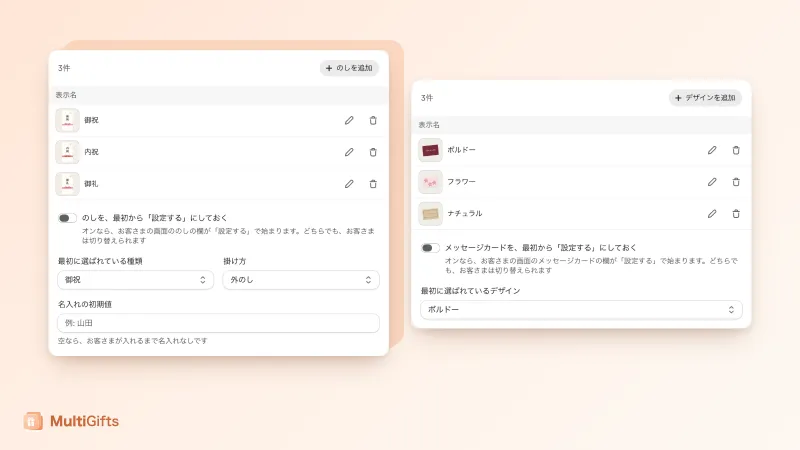
Noshi, message cards and gift bags
Register the noshi types and message card designs that customers can choose from, with images.
Shipping groups
Separate products that can't be sent together, such as chilled and ambient items, so they can't be assigned to the same address.
Products excluded from multiple shipping
When the cart has an excluded product, the "Ship to multiple addresses" button can't be clicked. Subscription and pre-order products are excluded from the start.
Orders and fulfillment
An order for each address, created automatically
After payment, a child order is created for each address. Sales, payments and refunds are handled on the parent order, so nothing is counted twice.
Shipping a child order marks the parent order too
When you fulfill a child order as usual, that address's items on the parent order are marked as fulfilled automatically.
To your warehouse or fulfillment system
You send only the child orders to your warehouse. Each address's delivery date and noshi can be read from the child order's notes and additional details.
One receipt from the parent order
A receipt is issued once, from the parent order (a separate app that issues receipts is needed).
Integration
Checkout Address Validator JP
Addresses that customers add or edit on the allocation screen can be checked with the same rules as checkout.
04 · Screens
Screens
The screens are shown in Japanese. Dates, items and delivery addresses are samples.
05 · Pricing
Pricing plans
The price is a monthly fee plus a fee for each child order. A child order is the order created for each address after payment, so an order with three addresses creates three child orders. Every plan includes all features.
-
Basic・Grow plan
$49.99/ month
- Per child order
- $0.20
- For stores on
- Shopify Basic or Grow
- Free trial
- 5 days
-
Advanced plan
$149.99/ month
- Per child order
- $0.10
- For stores on
- Shopify Advanced
- Free trial
- 5 days
-
Plus plan
$499.99/ month
- Per child order
- $0.10
- For stores on
- Shopify Plus
- Free trial
- 5 days
-
Enterprise plan
$799.99/ month
- Per child order
- $0.05
- For stores on
- Stores with many orders or custom requirements
- Free trial
- None
Includes API features and a dedicated support contact. We can also work on your own requirements after discussing them with you.
- Prices are in US dollars. The app fee is included in your Shopify bill.
- Choose the plan for your store's Shopify plan, or a higher one.
- A child order that has been created is counted even if it's canceled later. There's no monthly limit on the number of orders.
- Development stores (Shopify Partner test stores) aren't charged.
06 · FAQ
Frequently asked questions
How many delivery addresses can customers add?
Up to 20 in one order. For 21 or more, customers need to split the order in two. The limit of 20 comes from Shopify, and as soon as Shopify raises it, we'll raise it in MultiGifts too.
Can customers send to addresses outside Japan?
No. Only delivery addresses within Japan are supported.
How is shipping calculated?
Shipping is calculated for each address from your store's shipping rates, and the total is added as a single line, 配送料(お届け先N件) (Shipping, N addresses). Customers can see the total on the allocation screen before checkout.
Can customers use coupons or discounts?
Customers can enter a discount code or gift card at checkout. Coupons entered in the cart and automatic discounts aren't carried over.
What about receipts and packing slips?
Receipts are issued from the parent order, with a separate app that issues receipts. Packing slips come from the child orders, so they show no amounts. MultiGifts itself doesn't issue receipts or packing slips.
What emails do customers receive?
Shopify's standard emails. They receive one order confirmation, and a shipping confirmation for each child order. The people receiving the gifts don't get any emails.
What happens when an order is canceled?
When you cancel the parent order, the app cancels the child orders automatically.
Can it connect to a warehouse?
Only the child orders go to your warehouse or fulfillment system. Set it to skip orders tagged 複数配送 (multiple shipping). Each address's settings can be read from the child order's additional details and notes.
Does it work with a cart drawer?
The button appears on the cart page. It doesn't appear in a cart drawer, so make sure customers can go to the cart page.
Is it available in languages other than Japanese?
The allocation screen your customers use supports Japanese and English. The app's admin and theme editor settings are shown in Japanese. Support is available in Japanese and English.
07 · Get Started
Get started with MultiGifts
- Register your gift options
- Save your delivery date rules
- Place the block on your cart page
- Check it with a test order
MultiGifts manual (Support Center) (opens in a new tab)Contact us by chat (opens in a new tab)
If your store has many orders or you have specific requests, please talk to us about the Enterprise plan. Contact us